
How to Compress Video for Instagram Free Online
Have you ever uploaded a crisp 4K video clip to Instagram only for it to look blurry, pixelated, or fail during export? Learning how to compress video for instagram free before uploading is the secret to bypassing Instagram’s harsh automatic compression algorithms and keeping your content sharp.
Instagram processes millions of video uploads daily. When you upload unoptimized or large video files, Instagram aggressively compresses them on their servers, often causing stuttering, washed-out colors, and loss of resolution. Fortunately, you can prepare and shrink your video files online using optimal specs without paying for expensive video editing suites.
In this guide, you will learn the exact steps to shrink your clips for Instagram while maintaining pristine visual quality and smooth playback.
Why You Need to Compress Video for Instagram Free
Instagram enforces media processing guidelines to keep content loading fast across different cellular networks and mobile devices.
- Automatic Processing Penalties: High-bitrate files uploaded directly to Instagram get compressed abruptly by Meta’s servers, which leads to heavy pixelation.
- Reels & Stories Frame Specs: Instagram Reels and Stories render best at 1080×1920 pixels (9:16 aspect ratio) at a recommended bitrate of 3,500 kbps to 5,000 kbps.
- File Upload Lag: Oversized files take longer to upload, increasing the chances of the Instagram app freezing mid-process or failing to post.
To review Meta’s official media guidelines, check out the Instagram Help Center Video Upload Guidelines. For tips on optimizing video content across messaging apps, read our guide on How to Compress Video for WhatsApp Free.
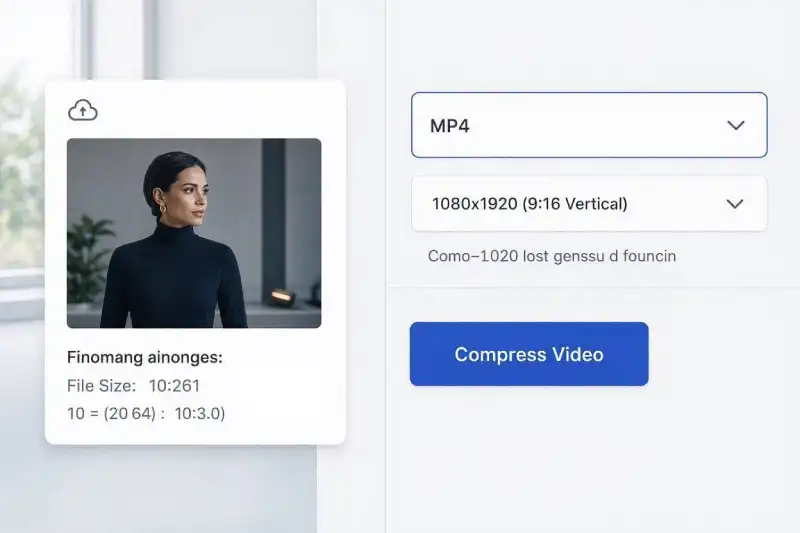
How to Compress Video for Instagram Free in 3 Simple Steps
You can lower video file sizes and match Instagram specs directly in your web browser using our Free Online Video Converter.
Step 1: Upload Video ➔ Step 2: Select MP4 & Adjust Resolution ➔ Step 3: Compress & Download
Step 1: Upload Your Video File
Open the Free Video Converter Tool and drag your video file directly into the upload box.
Step 2: Select MP4 Output and Adjust Resolution
Select MP4 as your output format. Set the video resolution to 1080p (1080×1920 for vertical Reels or 1080×1080 for square posts) and ensure the target bitrate matches Instagram’s streaming sweet spot.
Step 3: Compress and Download
Click Convert. Once cloud processing completes, click Download to save the optimized file back to your smartphone or computer.
Technical Settings to Compress Video for Instagram Free
When compressing clips for Instagram Reels, Stories, or grid posts, choosing the right technical parameters ensures your video renders perfectly upon upload:
| Parameter | Recommended Setting | Reason for Setting |
| Video Codec | H.264 | Standard codec required by Instagram for smooth hardware decoding. |
| Audio Codec | AAC (128 kbps to 256 kbps) | Delivers clear audio playback across iOS and Android devices. |
| Frame Rate | 30 fps or 60 fps | Ensures smooth playback without stuttering during fast action clips. |
| Target Resolution | 1080×1920 (Vertical) / 1080×1080 (Square) | Prevents Instagram from resizing and cropping your video frame. |
For detailed technical specifications on H.264 container standards, refer to the Apple Developer Media Encoding Standards. If you are working with QuickTime files captured on Apple devices, see our comparison on MOV vs MP4: Which Format Should You Use?.
Frequently Asked Questions
Why does my video look blurry after uploading to Instagram?
When you upload a video that exceeds Instagram’s recommended bitrate or file size, Instagram automatically compresses the file using low-tier server presets. Pre-compressing your video to recommended parameters prevents this quality loss.
What is the best video format for Instagram Reels?
The ideal format for Instagram Reels is MP4 with H.264 video codec and AAC audio, framed at a 9:16 aspect ratio (1080×1920 pixels).
Can I compress video for Instagram free on my iPhone or Android?
Yes. Our converter runs directly inside web browsers like Safari, Chrome, and Firefox, allowing you to compress files on mobile devices before uploading them to the Instagram app.