How to Compress Video for TikTok Free Online
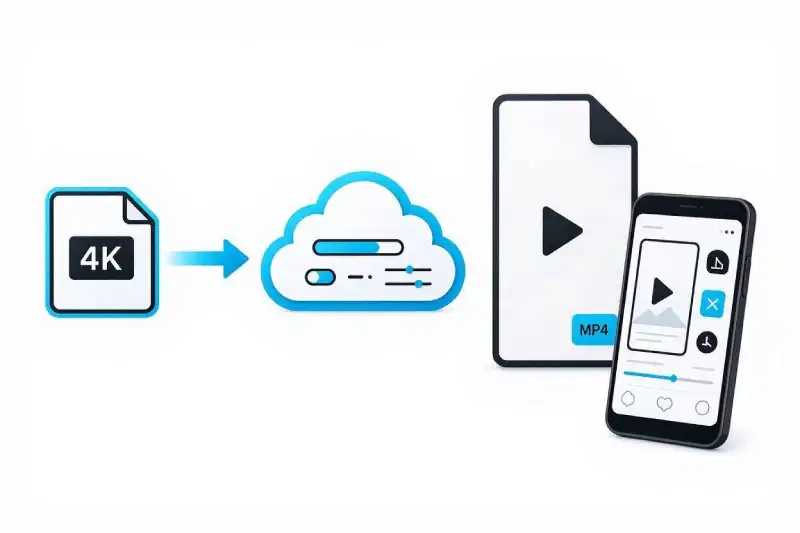
Have you ever spent hours editing a high-definition 4K video, only for TikTok to render it blurry, laggy, or out of sync after uploading? Learning how to compress video for tiktok free before posting is the most reliable way to maintain original sharpness and bypass TikTok’s automatic server compression.
TikTok processes billions of short-form clips every day. When an uncompressed 4K or high-bitrate video is uploaded, TikTok’s system automatically resizes and compresses the file using aggressive default settings. This often results in unwanted pixelation and frame drops. Fortunately, you can pre-compress your video online to match TikTok’s ideal upload specifications without paying for expensive editing software.
In this guide, you will learn the exact steps to optimize your vertical clips so they post smoothly with maximum visual clarity.
Why You Need to Compress Video for TikTok Free
TikTok enforces strict technical parameters to keep videos loading smoothly on cellular networks worldwide.
- File Size Caps: Standard uploads on Android devices are capped at 72 MB, while iOS uploads are capped at 287.6 MB.
- Automatic Server Processing: Files that exceed recommended bitrates trigger server-side re-encoding, which degrades color richness and clarity.
- Optimal Frame Format: TikTok performs best with 1080×1920 (9:16 aspect ratio) vertical videos encoded at 30 to 60 frames per second.
To review official platform guidelines, visit the TikTok Support Center File Upload Guidelines. For advice on optimizing content across other popular social media platforms, check out our guide on How to Compress Video for Instagram Free.
How to Compress Video for TikTok Free in 3 Simple Steps
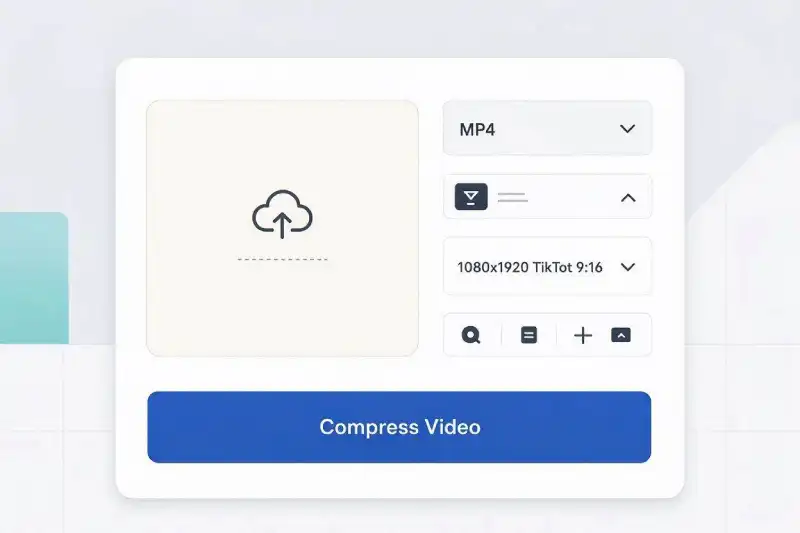
You can lower video file sizes and match TikTok settings directly in your web browser using our Free Online Video Converter.
Step 1: Upload Video ➔ Step 2: Choose MP4 & 1080x1920 ➔ Step 3: Compress & Download
Step 1: Upload Your Video File
Open the Free Video Converter Tool and drop your video file into the main upload box.
Step 2: Select MP4 Output and Set Resolution
Select MP4 as your target file format. Set your resolution output to 1080p (1080×1920 pixels) and select standard H.264 encoding to align with TikTok’s playback engine.
Step 3: Compress and Download
Click Convert. Once the cloud conversion finishes, click Download to save your TikTok-ready file directly to your phone or computer.
Technical Settings to Compress Video for TikTok Free
Applying the correct technical configuration before uploading guarantees that TikTok will stream your video at full quality without re-encoding:
| Parameter | Recommended Setting | Reason for Setting |
| Video Codec | H.264 | Broadly compatible codec required by TikTok for fast hardware rendering. |
| Audio Codec | AAC (128 kbps) | Preserves clean sound and voiceover clarity without extra byte weight. |
| Target Resolution | 1080×1920 (9:16 Vertical) | Matches standard smartphone screen displays perfectly. |
| Frame Rate | 30 fps or 60 fps | Delivers smooth motion during fast-paced edits and dance clips. |
For technical details on H.264 video container formatting, refer to the Apple Developer Media Encoding Standards. If you are shooting clips on Apple QuickTime devices, read our comparison on MOV vs MP4: Which Format Should You Use?.
Frequently Asked Questions
Why does my TikTok video look blurry after uploading?
TikTok automatically compresses files that have excessively high bitrates or unsupported resolutions. Compressing your file to 1080p with an optimized H.264 bitrate before uploading prevents TikTok from downgrading your video.
What is the maximum file size for TikTok uploads?
The file size limit is 72 MB on Android devices and 287.6 MB on iOS devices. Keeping your clip under 50 MB guarantees fast processing on all platforms.
Can I compress video for TikTok free on mobile devices?
Yes. Our converter functions inside mobile web browsers like Safari, Chrome, and Firefox, allowing you to compress files on your iPhone or Android phone before opening the TikTok app.