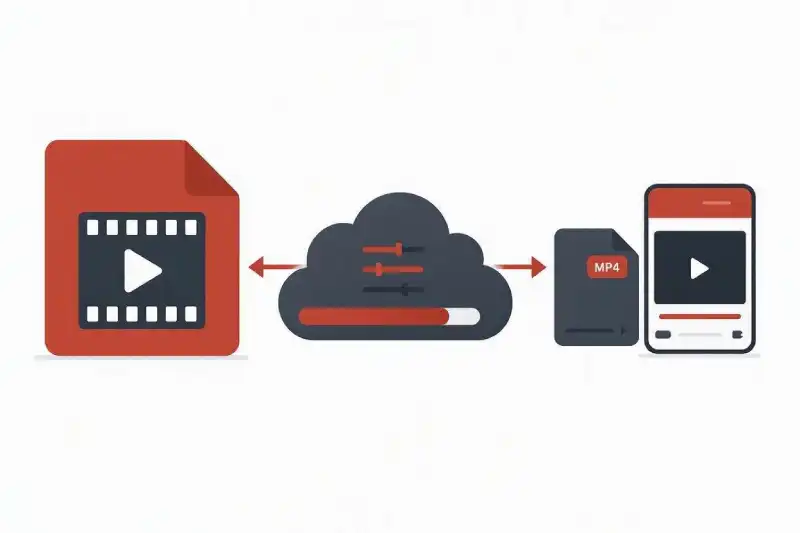
How to Compress Video for YouTube Free Online
Have you ever uploaded a large 1080p or 4K video to YouTube only for the processing bar to get stuck at 99% for hours? Learning how to compress video for youtube free before exporting or uploading is the best way to speed up rendering, avoid server processing timeouts, and preserve visual sharpness on your channel.
YouTube processes millions of gigabytes of creator content every single day. When you upload raw, uncompressed, or excessively high-bitrate video files, YouTube’s system takes much longer to process HD and 4K variations. In many cases, unoptimized uploads trigger automated server re-encoding that causes unwanted motion blur and compression artifacts. Fortunately, you can prepare and shrink your video files online using recommended parameters without buying expensive video editing suites.
In this guide, you will learn the exact steps to shrink your clips for YouTube while keeping your visuals sharp and audio crystal clear.
Why You Need to Compress Video for YouTube Free
YouTube enforces specific encoding recommendations to ensure fast playback and efficient streaming across web browsers, Smart TVs, and mobile devices.
- Shorter Processing Times: Pre-compressing your file to YouTube’s target bitrate ensures HD and 4K processing finish in minutes rather than hours.
- Prevents Network Timeout Errors: Oversized video files (especially 10GB or larger) frequently fail during upload on standard home broadband connections.
- Avoids Quality Degradation: When an upload strictly matches YouTube’s preferred container and codec specs, the platform applies cleaner server-side re-encoding.
To review official platform parameters, consult the YouTube Help Center Upload Encoding Settings. For tips on optimizing short-form content across other video channels, explore our guide on How to Compress Video for TikTok Free.
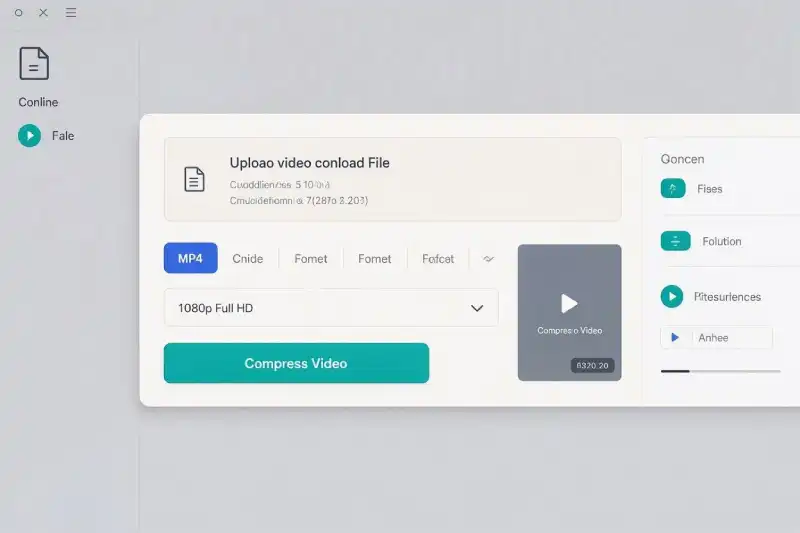
How to Compress Video for YouTube Free in 3 Simple Steps
You can lower video file sizes and match YouTube specs directly in your web browser using our Free Online Video Converter.
Step 1: Upload Video ➔ Step 2: Choose MP4 & Resolution ➔ Step 3: Compress & Download
Step 1: Upload Your Video File
Open the Free Video Converter Tool and drag your video file into the upload zone.
Step 2: Select MP4 Output and Set Resolution
Select MP4 as your destination file format. Set your target output resolution to 1080p (1920×1080) or 4K (3840×2160) and ensure the bitrate aligns with YouTube streaming standards.
Step 3: Compress and Download
Click Convert. Once cloud processing completes, click Download to save your YouTube-ready file directly to your desktop or phone.
Technical Settings to Compress Video for YouTube Free
Applying recommended technical configurations before uploading guarantees that YouTube renders your video smoothly without heavy quality loss:
| Parameter | Recommended Setting | Reason for Setting |
| Video Codec | H.264 (Progressive Scan) | Standard codec recommended by YouTube for high visual clarity and fast hardware decoding. |
| Audio Codec | AAC-LC (384 kbps for Stereo) | Preserves clear sound quality and voiceovers without adding heavy file weight. |
| Target Resolution | 1920×1080 (1080p) or 3840×2160 (4K) | Delivers crisp display across desktop monitors, mobile devices, and Smart TVs. |
| Frame Rate | 24, 30, or 60 fps | Matches source footage natively to prevent duplicate frame stutter. |
For detailed technical standards on H.264 container formatting, refer to the official Apple Developer H.264 Video Codec Guidelines. If you are working with camera files captured on Apple devices, check out our comparison on MOV vs MP4: Which Format Should You Use?.
Frequently Asked Questions
Why is my YouTube video processing stuck at 99%?
YouTube processing usually freezes at 99% when the uploaded file is too large, uses an unsupported audio/video codec, or has an excessively high bitrate. Pre-compressing your file to an optimized MP4 solves this issue.
What is the best bitrate to compress video for YouTube free?
For standard 1080p videos at 30 fps, YouTube recommends a target bitrate of 8 Mbps. For 1080p at 60 fps, aim for 12 Mbps. For 4K videos, target 35 to 45 Mbps.
Can I compress video for YouTube free on mobile devices?
Yes. Because our converter runs completely inside web browsers like Chrome, Safari, and Firefox, you can compress files directly on iOS and Android devices prior to uploading via the YouTube app.