How to Compress Video for Facebook Free Online
Have you ever tried posting a clip to Facebook only for the upload to take forever, freeze mid-progress, or lose crispness after processing? Learning how to compress video for facebook free before uploading is the best way to avoid playback errors, reduce upload times, and ensure your media renders sharply in the feed.
Facebook handles billions of video views every day across feed posts, Facebook Reels, and Facebook Messenger. When an uncompressed or high-bitrate video is uploaded, Facebook’s systems automatically re-encode the file using default server presets, which can cause frame stutter, blurriness, and washed-out colors. Fortunately, you can pre-compress your video files directly online without installing paid editing suites or complex software.
In this guide, you will learn the exact steps to shrink your clips for Facebook while maintaining high visual quality and clean audio.
Why You Need to Compress Video for Facebook Free
Facebook enforces media optimization standards to keep feed scrolling smooth across various network speeds and mobile devices.
- Maximum Upload Limits: While Facebook technically allows large file uploads up to 10GB on desktop, files over 1GB frequently fail or timeout on standard Wi-Fi or mobile connections.
- Facebook Messenger Limit: Videos sent directly as attachments in Facebook Messenger are capped at 25MB.
- Reels and Feed Specifications: Facebook Reels perform best in a 9:16 vertical aspect ratio (1080×1920), whereas feed videos work best in 16:9 landscape or 1:1 square formats.
To review official platform media specs, consult the Facebook Help Center Video Guidelines. For advice on optimizing video content across other social networks, read our guides on How to Compress Video for Instagram Free and How to Compress Video for TikTok Free.
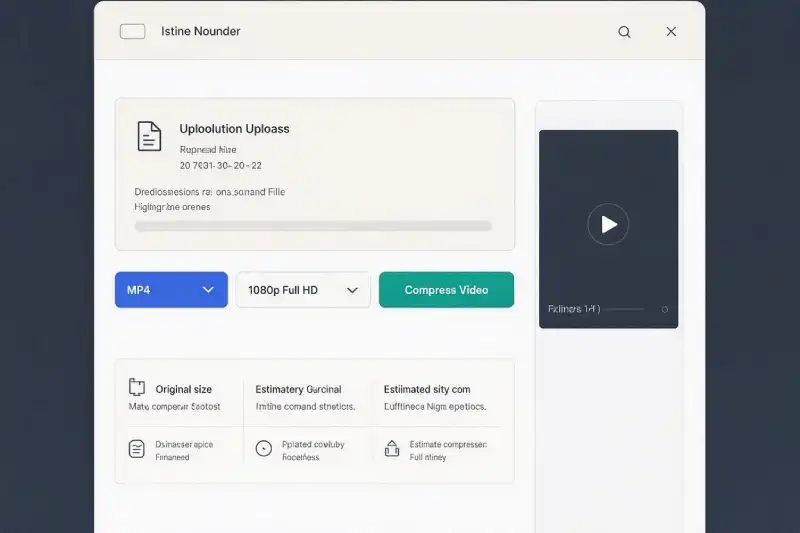
How to Compress Video for Facebook Free in 3 Simple Steps
You can lower video file sizes and match Facebook specs directly in your web browser using our Free Online Video Converter.
Step 1: Upload Video ➔ Step 2: Choose MP4 & Resolution ➔ Step 3: Compress & Download
Step 1: Upload Your Video File
Open the Free Video Converter Tool and drag your video file directly into the conversion box.
Step 2: Select MP4 Output and Lower Resolution
Select MP4 as your target output format. Set your resolution output to 1080p (1920×1080) or 720p (1280×720) depending on your target file size.
Step 3: Compress and Download
Click Convert. Once cloud processing finishes, click Download to save your Facebook-ready file back to your computer or phone.
Technical Settings to Compress Video for Facebook Free
Applying the correct technical configuration before uploading guarantees that Facebook will render your video smoothly without heavy quality loss:
| Parameter | Recommended Setting | Reason for Setting |
| Video Codec | H.264 | Standard codec required by Facebook for seamless hardware decoding. |
| Audio Codec | AAC (128 kbps to 256 kbps) | Preserves clean stereo audio while taking up minimal byte space. |
| Target Resolution | 1080p (Feed/Reels) or 720p | Delivers high clarity across desktop screens and mobile apps. |
| Frame Rate | 30 fps or 60 fps | Ensures smooth motion during fast-paced video clips. |
For technical documentation on the H.264 video codec standard, refer to the Apple Developer H.264 Video Codec Guidelines. If you are working with QuickTime files captured on iOS devices, see our companion breakdown on MOV vs MP4: Which Format Should You Use?.
Frequently Asked Questions
What is the maximum video file size for Facebook Messenger?
The maximum file size limit for video attachments sent directly through Facebook Messenger is 25MB.
Why does my Facebook video look blurry after uploading?
When you upload a video with an unsupported codec, resolution, or excessively high bitrate, Facebook automatically re-encodes the clip using lower quality settings. Compressing your file to recommended MP4 specs before uploading fixes this issue.
Can I compress video for Facebook free on mobile devices?
Yes. Because our converter runs completely in web browsers like Safari, Chrome, and Firefox, you can compress files directly on iOS and Android devices without installing third-party apps.
Image Prompts and Visual Assets
Visual Asset 1: Featured Header Graphic